Is your library of videos, still graphics, and announcements in your presentation software a mess? Whether you use ProPresenter, MediaShout, EasyWorship, or another presentation tool, your media library needs regular management to stay organized. That takes time, commitment, and teaching everyone involved to follow your media library guidelines.
Organize Your Hard Drive
Start by gathering all your media into one folder on your hard drive. Store it on an internal drive other than your system drive, or on a high-speed external drive. Besides being fast, this protects your data if your system drive crashes.
Clean Up Your Media
Once all your media is in one place, clean it up before you start sorting:
- Delete or archive outdated media.
- Delete duplicate media.
- Delete low-resolution and poorly designed media.
- Re-encode oddly formatted media to a new format.
- Rename media using logical naming conventions.
- Test problematic media.
Root Folder Organization
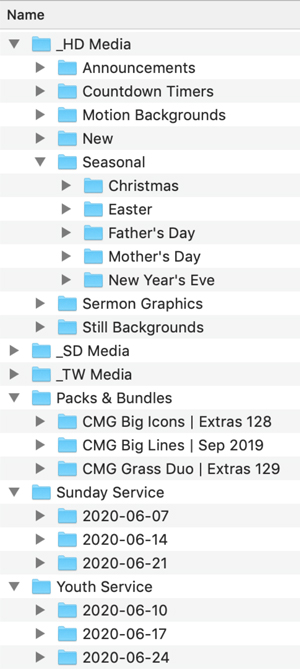
- Create a single folder on your hard drive for all your media. Keep it easy to find, not deeply nested where a volunteer would have trouble locating it.
Inside it, create a folder for each format, such as high definition (HD), standard definition (SD), and triple-wide resolutions.
Splitting by format helps if you present at venues with different screen aspect ratios and projector resolutions. If you only work in HD, consider archiving your SD content in another location on your hard drive.
- Create a "Sunday Service" folder for media used only on a particular weekend, such as an announcement slide, photo, or Keynote or PowerPoint presentation.
- Inside "Sunday Service," create a sub-folder for each weekend service, named in YYYY-MM-DD format.
- Create a "Bundles and Packs" folder. Producers sell thematic packages of countdown timers, still graphics, and motion backgrounds, so keep each pack together rather than sorting its pieces into different folders.
HD, SD, and Triple-Wide Folders
Inside each "HD," "SD," and "Triple-wide" folder, create the same sub-folders:
- Announcements
- Countdown Timers
- Motion Backgrounds
- Sermons
- New: temporary storage for media you have not had time to sort. Maintain it regularly, or it can quickly become disorganized.
- Seasonal: sub-folders for seasons and celebrations such as Mother's Day and Thanksgiving. For media-heavy seasons such as Christmas and Easter, consider adding folders by content type (for example, "Christmas Countdown Timers" and "Christmas Announcements"), or add the year to the folder name.
- Still Backgrounds
Identical sub-folders make it easy to find the media you need when you switch between 4:3 and 16:9 setups.
Organize Your Presentation Software
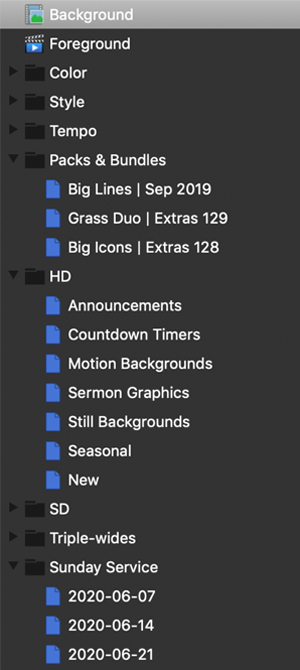
Once your hard drive is organized, import your media into your presentation software and organize it there.
Same as Hard Drive
- Create "HD," "SD," and "Triple-wide" folders.
- Inside each one, create playlists and folders for:
- Announcements
- Countdown Timers
- Motion Backgrounds
- Sermons
- New
- Seasonal
- Still Backgrounds
- Add your special folders: "Bundles and Packs" and "Sunday Service."
Themed Folders and Playlists
You can also create playlists and folders based on themes such as color, tempo, media producer, and style, so you can find a piece of media quickly. Create as many as you need without getting carried away: simplicity makes your library much easier to organize.
Updated