Many of the visuals in the Media Browser are fully editable. Every slide template, social graphic, and lower third includes a hidden layer that names the fonts (typefaces) used in the graphic and where to find them online. You can view this layer in Adobe Photoshop (paid) or Photopea (free).
Download the Editable PSD
Note: Slide templates, social graphics, and lower thirds are available with a Premium subscription.
From the Media Browser, select the slide template, social graphic, or lower third of your choice.
- In the version section of the window, choose Editable PSD.
Select download.
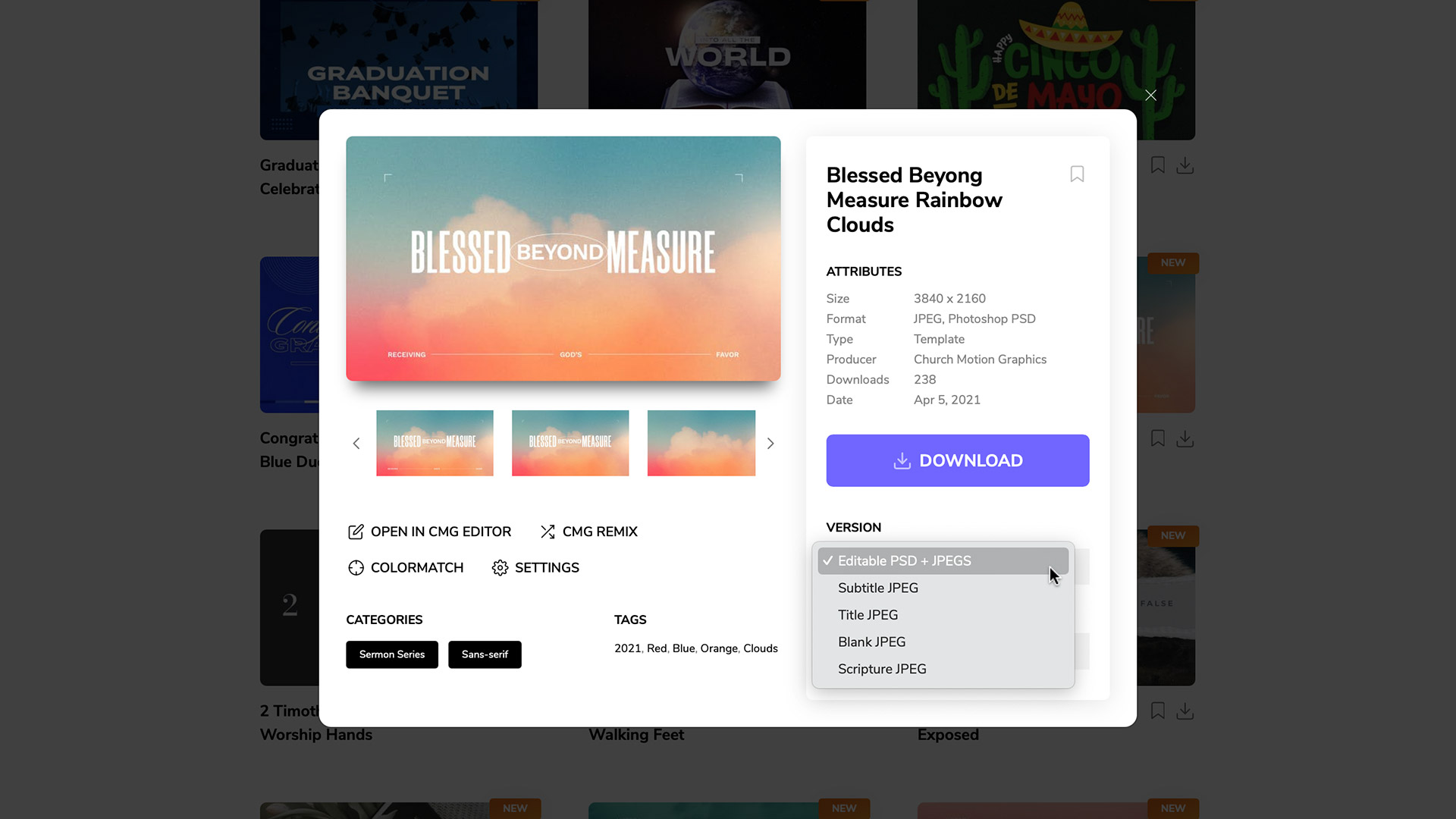
- If the download arrives as a ZIP file, unzip it using the software of your choice for your operating system.
The download contains a Photoshop Document (PSD) file designed for Adobe Photoshop.
Find the Fonts in Adobe Photoshop
- Double-click the PSD file to open it in Photoshop.
In the Layers panel (usually in the bottom right corner of Photoshop), locate the layer labeled Fonts Used. This layer is turned off.
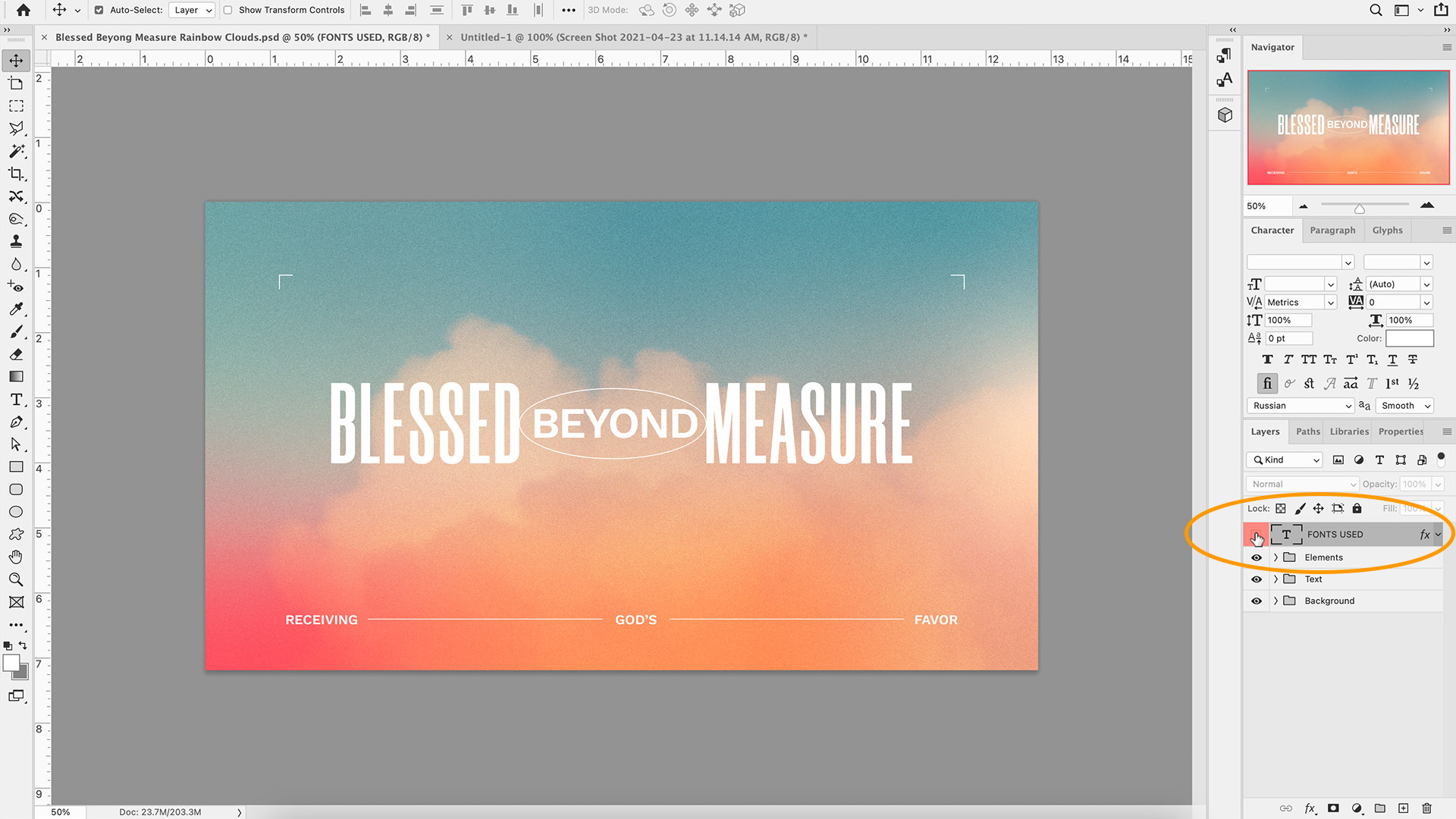
Select the box to the left of the Fonts Used layer to turn on its visibility. A text box appears at the top of the graphic.
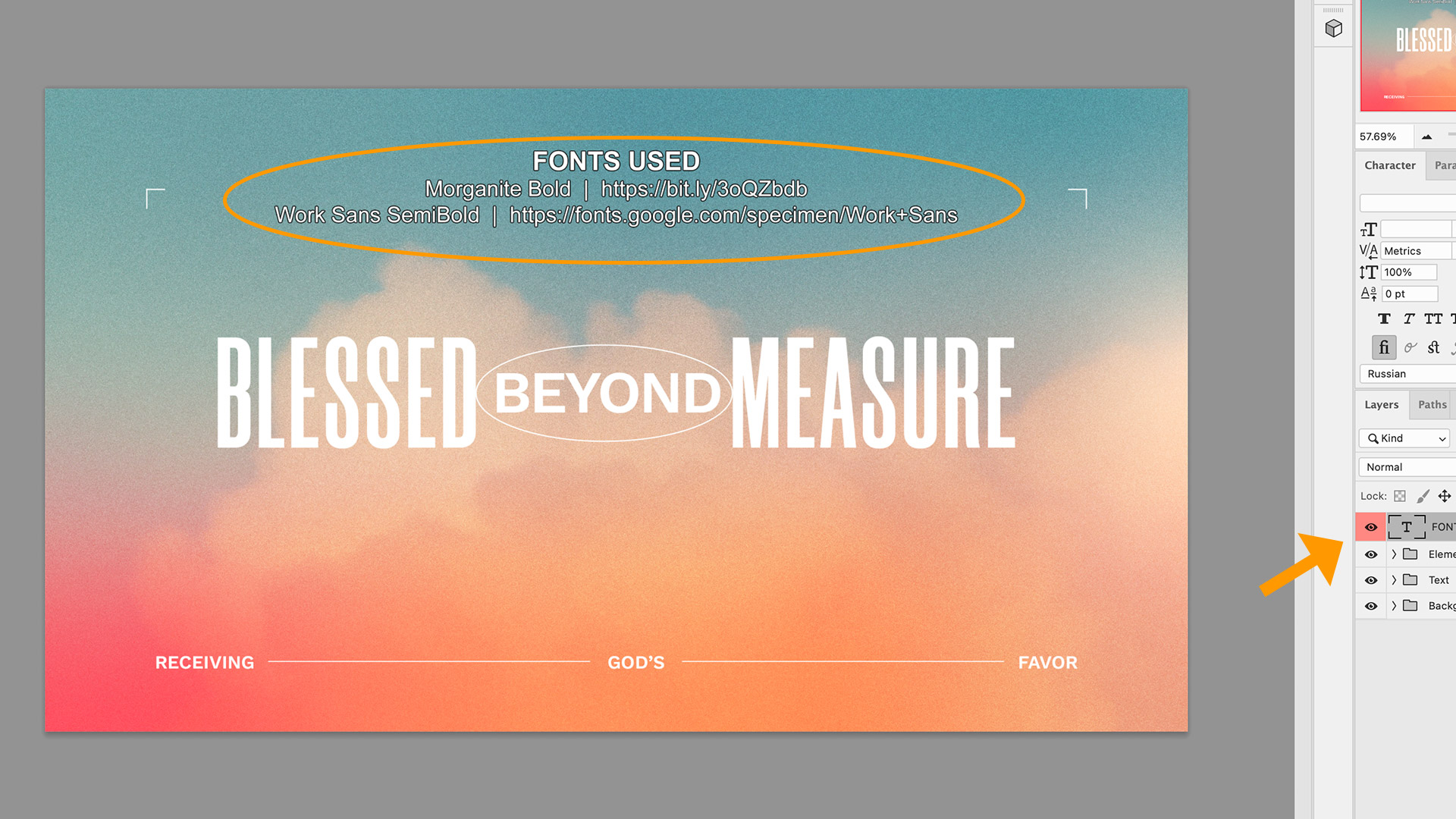
Review the text box, which lists the name of each font used in the graphic and a URL where you can find it online for download.
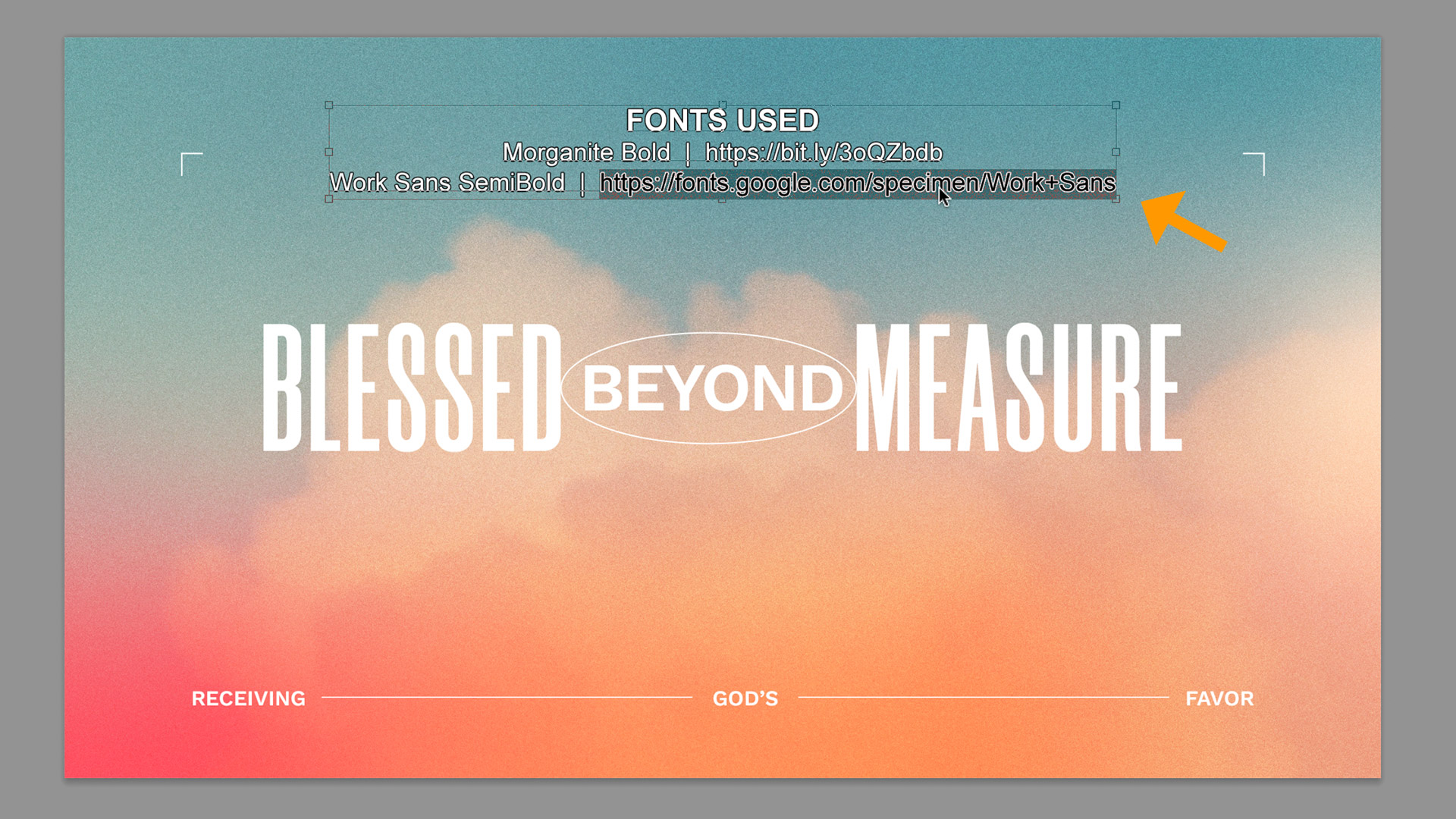
- Double-click a URL to select it. The text in this layer is editable.
- Copy the URL.
- Paste the URL into your internet browser.
Find the Fonts in Photopea
Photopea is a free online photo editor that can open PSD files designed for Adobe Photoshop.
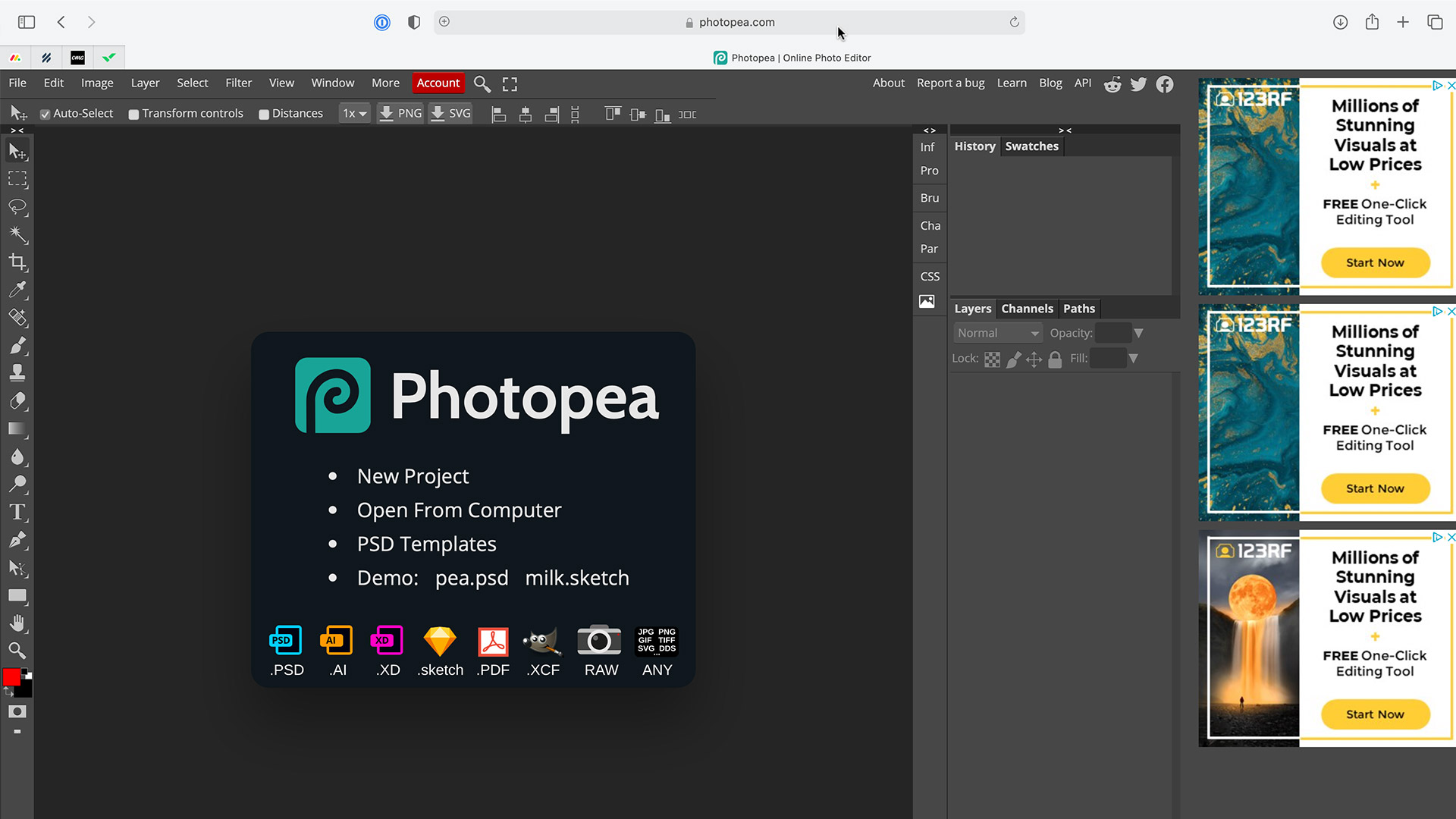
- In your internet browser, go to Photopea.com.
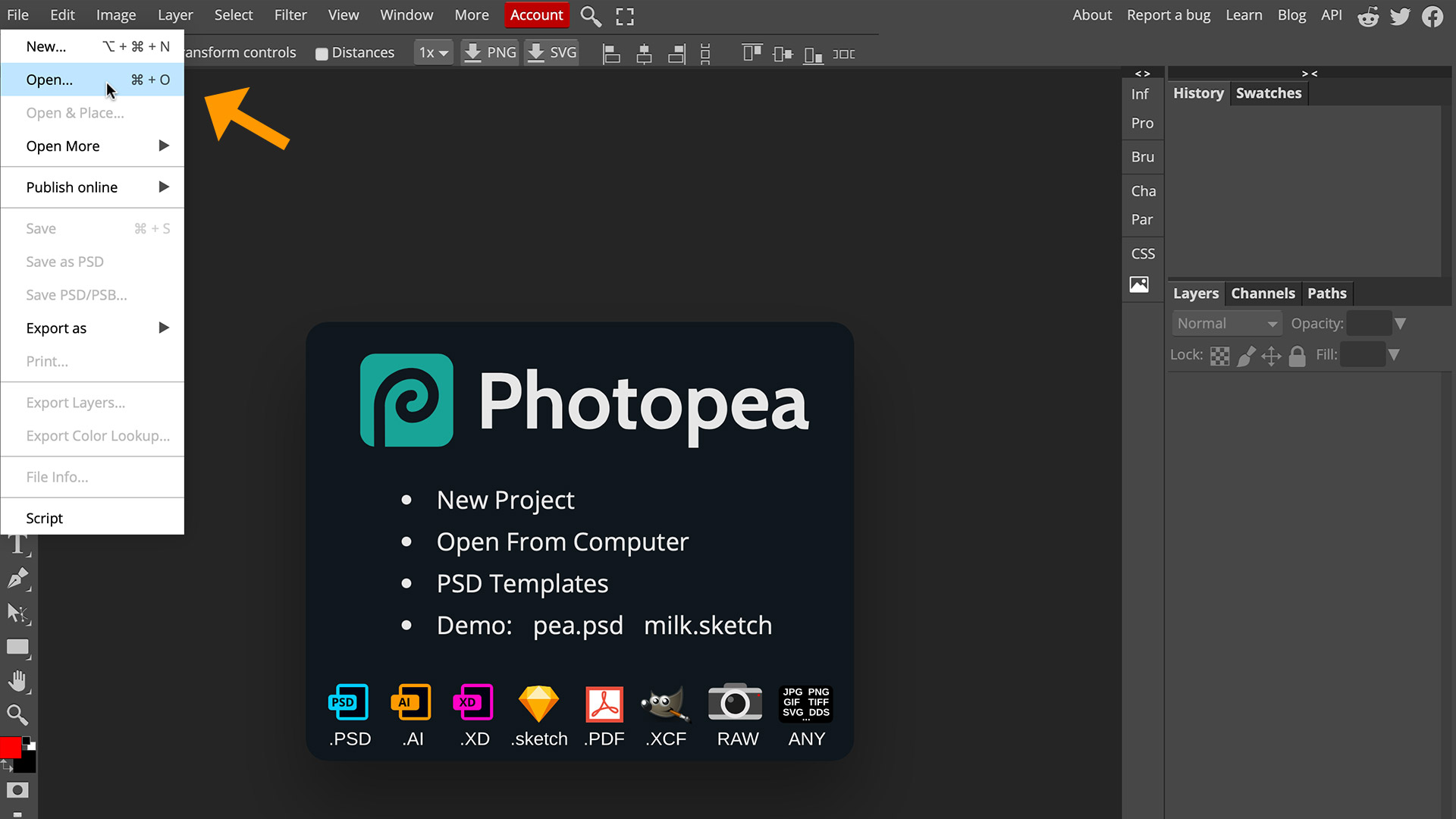
- In the top right corner, select File.
- Select Open. A window opens so you can locate the PSD file you downloaded.
- Select the PSD file.
Select Choose For Upload.
In the Layers panel in the bottom right corner of your screen, locate the layer labeled Fonts Used. This layer is turned off.
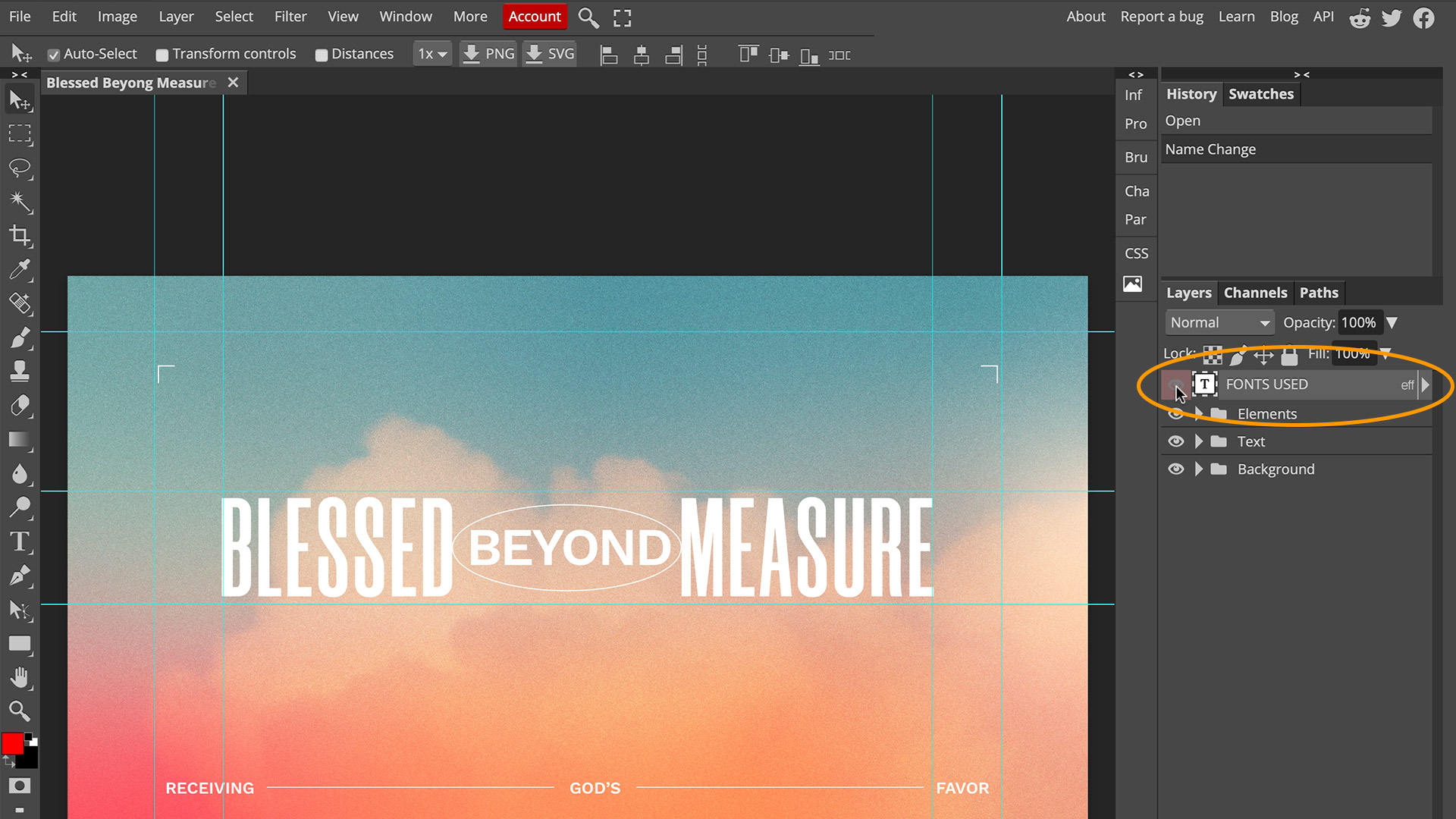
Select the visibility control to the left of the Fonts Used layer to turn on its visibility. A text box appears at the top of the graphic.
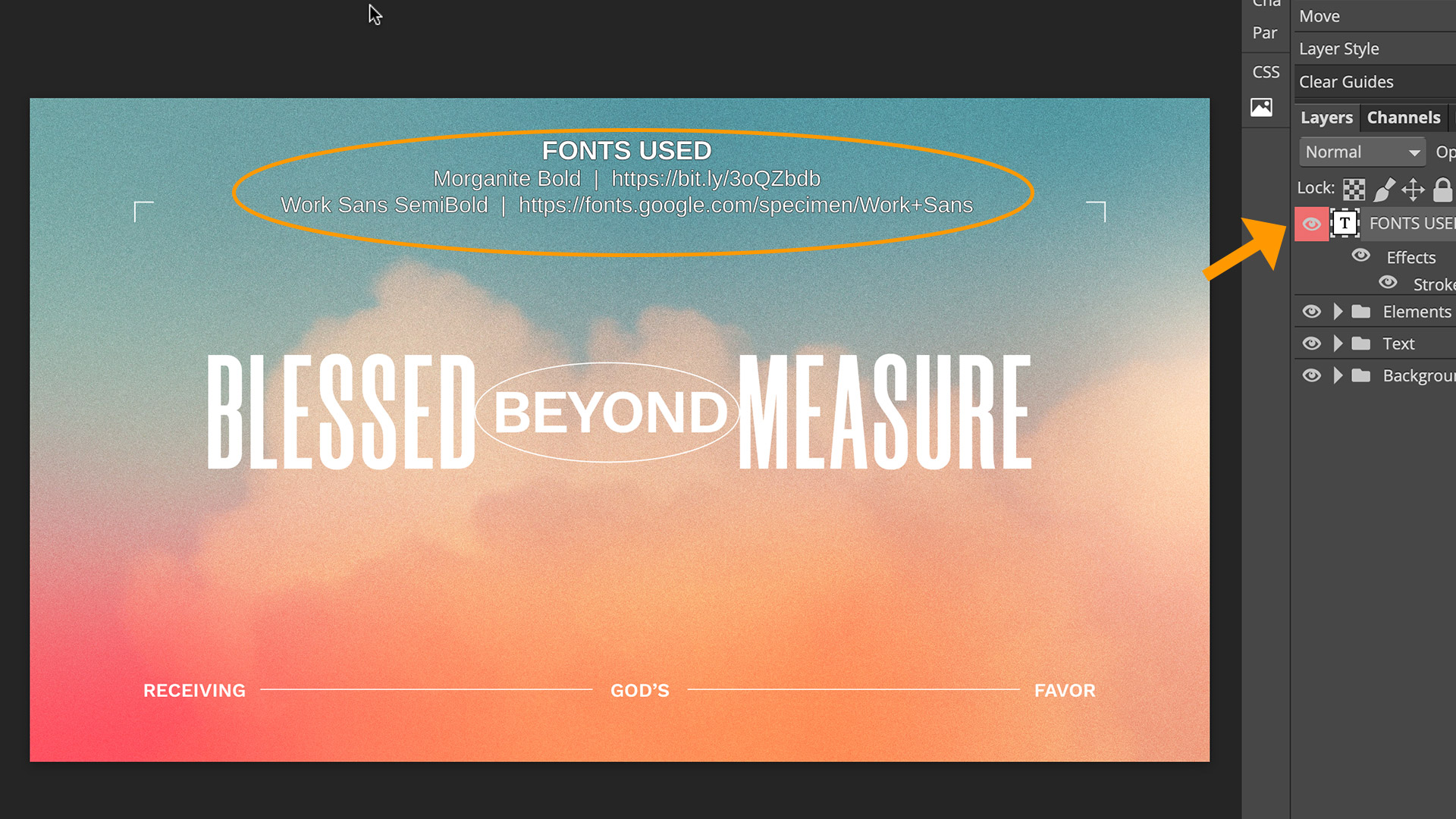
Review the text box, which lists the name of each font used in the graphic and a URL where you can find it online for download.
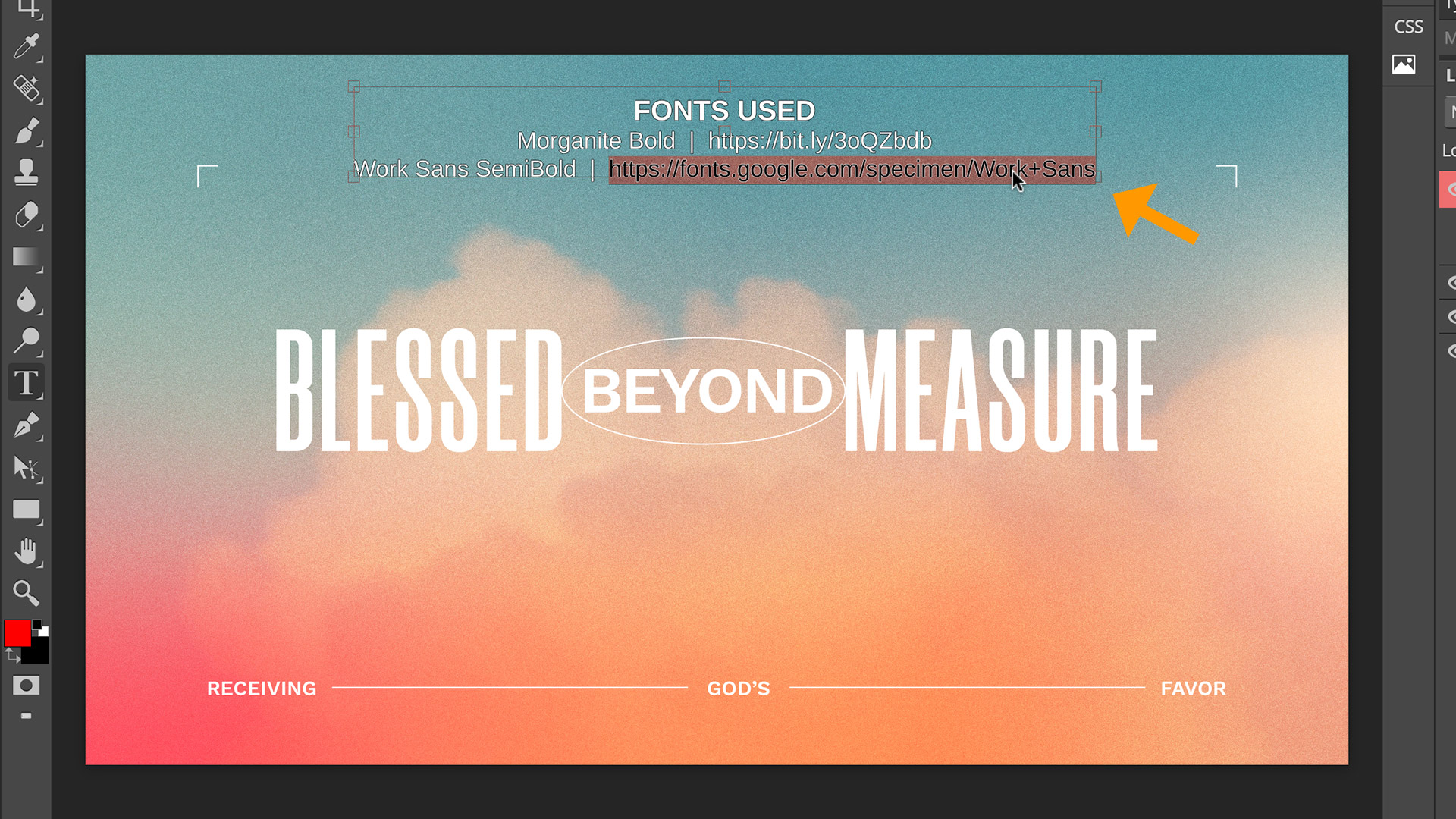
- Double-click a URL to select it. The text in this layer is editable.
- Copy the URL.
- Paste the URL into your internet browser.